
 18 Sep 2026
 11 min read
A WordPress theme controls the visual design and much of the layout of your website. It affects how visitors see your pages, how easily you can customize the site, and sometimes how quickly and accessibly it works.
This guide explains what themes for WordPress do, how to choose a suitable WordPress theme, and how to install, customize, update, and replace one safely. If you are new to WordPress, you can also explore our WordPress beginner guides for help with the rest of your website.
Themes for WordPress: what it means in practice
A WordPress theme is a collection of files that controls the appearance and layout of a WordPress website. It determines details such as:
- Page layouts
- Header and footer designs
- Navigation menus
- Typography and colors
- Blog post layouts
- Sidebar placement
- Buttons and other visual elements
- Responsive behavior on phones and tablets
Your theme works with WordPress, your content, and your plugins. Changing the theme usually changes the presentation of your content without deleting your posts, pages, images, or other stored data.
For example, imagine that your website has ten blog posts and five pages. Switching from one theme to another should keep that content available, but the posts may appear with a different font, spacing, header, or sidebar layout.
The term theme wp is simply another way people refer to a WordPress theme. You may also see searches for templates for WordPress, a theme for WP, or WordPress themes by WordPress. These searches generally point to the same basic need: finding a design framework for a WordPress website.
A theme is not the same as a page builder, plugin, or hosting service:
- A theme controls the site’s overall design and structure.
- A plugin adds features, such as contact forms, backups, or SEO controls.
- A page builder may provide visual tools for designing individual pages.
- Hosting stores your website and makes it available online.
A good theme gives you a dependable starting point without forcing every page to look identical. However, the most attractive demo is not always the best choice. A theme may include features you do not need, be difficult to customize, or perform poorly on smaller screens.
Themes for WordPress: the key factors
Choosing among WordPress themes is easier when you separate appearance from practical requirements. Start with what your site needs to do, then consider design.
The core problem to understand
The central problem is that a theme can affect more than colors and fonts. It may influence your site’s layout, editing experience, accessibility, mobile presentation, and maintenance.
Many themes include demo content that looks polished because it uses carefully selected images, short headings, and carefully arranged sections. Your own content may not look the same. Before choosing a theme, ask whether it will still work when:
- Your headlines are longer
- Your images have different dimensions
- You publish several types of content
- You add a navigation menu with more items
- Visitors use phones or tablets
- You need to update the theme later
A theme should support your content rather than dictate it. If you run a blog, readable article layouts may matter more than elaborate animations. If you run a small business website, clear service pages and contact information may be more important than a large collection of visual effects.
Performance also matters. A theme with unnecessary sliders, animations, bundled features, or complex settings may make the site harder to manage. A lightweight design with the exact layout you need can be a better long-term choice than a feature-heavy theme.
Themes and plugins also have different responsibilities. Avoid choosing a theme solely because it includes features that should normally remain available if you change designs. For example, important content and site functionality should generally not depend entirely on a theme. Keeping design separate from essential features makes future changes safer.
The practical decision criteria
Use the following criteria when comparing a WordPress theme.
1. Fit for your website
Choose a theme that matches your content structure. A blog, portfolio, online store, nonprofit website, and business site may need different layouts, but you do not necessarily need a highly specialized theme.
Look for a theme that supports the pages you plan to publish. Consider whether you need:
- A prominent blog layout
- Multiple page templates
- A simple navigation menu
- A full-width page option
- A sidebar
- Featured images
- Custom logos or colors
- Compatibility with the plugins your site requires
Do not select a theme because its demo includes features you will never use.
2. Responsive design
A responsive theme adjusts its layout to different screen sizes. Menus, images, columns, buttons, and text should remain usable on phones and tablets as well as desktop computers.
Preview the theme at different browser widths if possible. Check whether:
- Text remains easy to read
- Menus are simple to open
- Buttons have enough space to tap
- Images fit within the screen
- Columns stack sensibly
- No content is cut off or forced into horizontal scrolling
Responsive design is essential because many visitors will not use a large desktop screen.
3. Accessibility
An accessible theme helps more people use your website, including visitors who navigate with keyboards, screen readers, or other assistive technologies.
Look for clear color contrast, readable typography, visible keyboard focus, logical heading structures, and menus that can be operated without a mouse. No theme can solve every accessibility issue automatically, so you should also write descriptive link text, add useful image alternative text, and structure your content clearly.
4. Compatibility
Before installing a theme, check whether it is compatible with your WordPress version and the plugins you plan to use. Pay particular attention to essential tools such as forms, ecommerce features, membership systems, or SEO plugins.
Test important functions on a staging site or temporary installation when possible. At minimum, make a backup before making major changes.
For broader guidance on selecting tools that work together, see the WordPress plugin resources in the WordPress beginner guides. The main principle is simple: avoid building your site around a theme that conflicts with essential features.
5. Customization options
A theme may let you change colors, fonts, logos, menus, layouts, and other settings through the WordPress Customizer or Site Editor. The available controls vary by theme.
More settings are not always better. A beginner may find a focused set of controls easier to use than a large panel filled with unfamiliar options. Check whether you can make the changes you actually need without editing code.
6. Updates and support
Themes need maintenance. Updates may fix bugs, improve compatibility, or address security concerns. Before selecting a theme, check whether it has a clear update history and documentation or support resources.
A free theme can be a good starting point, but support may be limited depending on where it comes from. A premium theme may include more support or features, but that does not automatically make it better for your site.
7. Free versus premium themes
Free themes can help you launch a website without adding another expense. They are often suitable for blogs, personal sites, and simple business websites.
Premium themes may offer additional designs, customization controls, documentation, or support. They can be useful when you need a particular layout or want access to assistance, but avoid paying for features that do not solve a real problem.
Before choosing either option, ask:
- Does the theme meet my current needs?
- Will I understand how to customize it?
- Is it maintained?
- Does it work with my essential plugins?
- Are the included features useful, or merely impressive in the demo?
- What happens if I stop paying for an optional service?
Do not assume that premium means faster, safer, or easier. Evaluate the actual theme and its maintenance practices.
Common mistakes to avoid
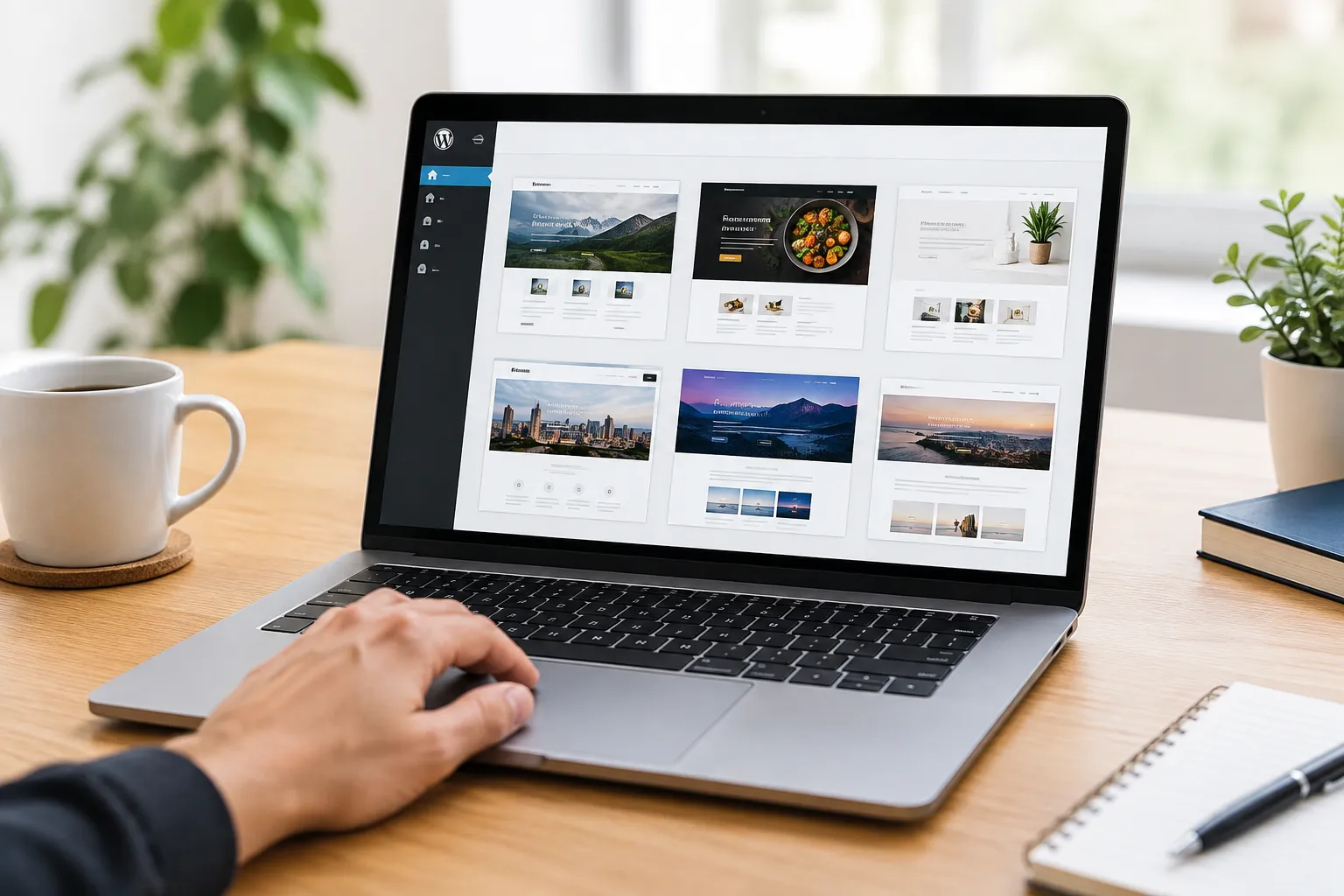
One common mistake is choosing a theme based only on its demo. Demo content is designed to present the theme at its best. Replace the demo images and text mentally with your own material before deciding.
Another mistake is switching themes without a backup. Even when your content remains in the database, a theme change can affect menus, widgets, custom settings, page layouts, and theme-specific features. Create a backup and record your current settings first.
Avoid installing themes from unknown websites or unofficial download sources. A theme should come from a source you can evaluate and maintain. If you are unsure where to begin, use the WordPress beginner guides to review basic site-management practices before changing your design.
Other mistakes include:
- Installing several themes when you only need one active theme
- Adding many plugins to compensate for a poor theme choice
- Ignoring mobile layouts
- Using very small or low-contrast text
- Choosing a theme with features you cannot maintain
- Making changes directly to the parent theme
- Failing to test forms, menus, and important pages after an update
- Assuming changing themes will improve slow hosting or poorly optimized images
A new theme may help with an inefficient design, but it cannot fix every performance problem. Hosting, plugins, images, scripts, and website configuration can also affect speed.
Themes for WordPress in practice: how to apply it
Once you have chosen a theme, follow a controlled process rather than changing everything at once.
1. Prepare your website
Make a backup of your files and database. If your hosting provider offers a staging environment, use it to test the new theme without changing the live site.
Write down your current theme settings, widgets, menus, custom CSS, and important integrations. This makes it easier to restore anything that does not transfer automatically.
2. Install the theme
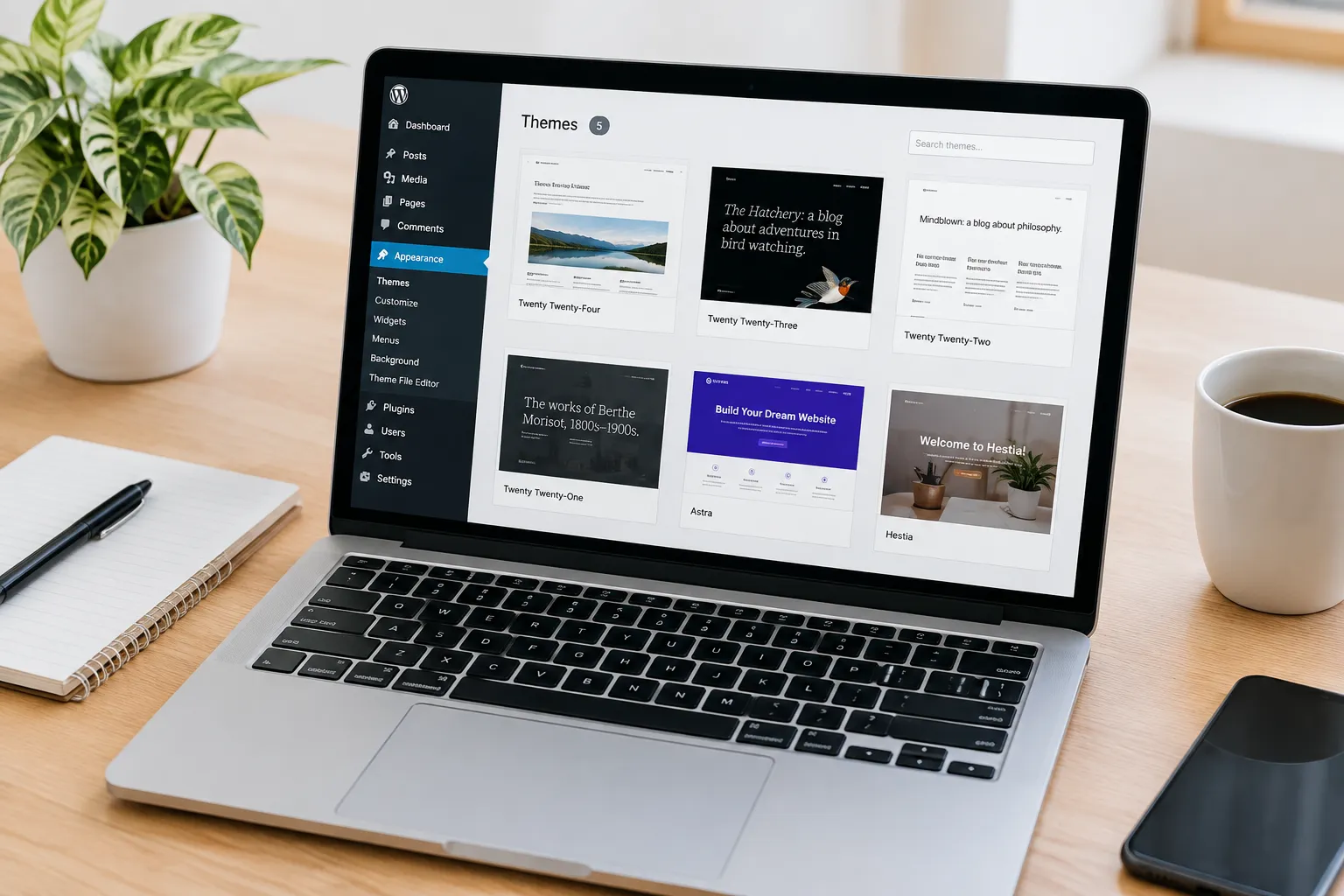
From your WordPress dashboard, go to Appearance and then Themes. Select Add New to browse available themes, or upload a theme file if you received one from a trusted source.
After installation, do not activate the theme immediately on a busy live website unless you are prepared to check the result. Use the preview option where available, or test it on staging first.
3. Activate and review the main pages
After activation, open the homepage, blog page, contact page, and any pages that are important to your visitors. Check both desktop and mobile views.
Look for:
- Missing menus
- Incorrect page widths
- Broken images
- Unreadable text
- Missing widgets
- Unexpected spacing
- Forms that no longer work
- Changes to post and page layouts
A theme may require you to assign menus, choose a homepage, or configure widgets again.
4. Customize the design
Use the theme’s available settings to add your logo, select colors, configure typography, and arrange menus. Keep the design consistent and easy to scan.
Do not add decorative elements simply because they are available. Every animation, large image, or extra section should support the visitor’s task. For a beginner site, clear navigation and readable content usually matter more than a complicated homepage.
5. Check your content and settings
Review several posts and pages, not just the homepage. Check categories, featured images, author information, comments, search, and any custom post types your site uses.
Also check your SEO settings. Changing themes should not normally remove your SEO plugin’s settings, but theme templates can affect headings, breadcrumbs, structured content, and other presentation details. Review important pages after the change rather than assuming everything transferred perfectly.
You can find more guidance in WPBeginner’s WordPress SEO resources when you need to check search-related settings after a redesign.
6. Keep the theme updated
Update the theme when updates are available, but test important changes before applying them to a busy website. Keep WordPress, themes, and plugins maintained, and remove themes you are no longer using when appropriate.
If you use a child theme for custom code, understand what it does before updating or replacing the parent theme. A child theme can help preserve custom changes, but it also adds another layer to maintain.
7. Replace a theme safely when necessary
You can replace a WordPress theme by installing another theme and activating it. Before doing so, back up the site and check whether the current theme provides any special features that need to be moved elsewhere.
After activating the replacement:
- Confirm that the homepage displays correctly.
- Reassign menus and widgets if needed.
- Check posts, pages, archives, and search.
- Test forms and other important functions.
- Review mobile layouts.
- Check page titles, headings, and search settings.
- Remove the old theme only after confirming that you no longer need it.
Changing a theme is often safer when the theme controls presentation only. If the old theme stores important content or custom features in theme-specific settings, plan the migration before switching.
Themes for WordPress FAQ
What are the top 10 WordPress themes?
There is no single top ten that suits every site. Compare WordPress themes by layout, responsiveness, accessibility, maintenance, customization, compatibility, and how well each fits your content.
Where can I get free WordPress themes?
You can find free WordPress themes through the theme directory available from the WordPress dashboard. Review each theme’s documentation, updates, compatibility, and customization options before activating it.
Themes for WordPress basics: what should you know first?
A WordPress theme controls your site’s design and layout, while plugins add features. Your best starting point is a responsive, maintainable theme that supports your content without unnecessary complexity.
Themes for WordPress options: how do you choose the right one?
Choose a theme based on your site’s content, required layouts, mobile usability, accessibility, support, updates, and plugin compatibility. Treat the demo as an example, not a guarantee that your content will look identical.
Themes for WordPress mistakes: which ones should you avoid?
Avoid choosing only by appearance, skipping backups, ignoring mobile testing, installing from untrusted sources, and adding too many plugins to compensate for a poor theme. Also avoid editing theme files directly without a safe recovery plan.
Themes for WordPress in daily use: what should you expect?
Expect to configure menus, colors, fonts, layouts, and homepage settings after activation. You should also review important pages, test mobile views, and update the theme as part of routine WordPress maintenance.
Themes for WordPress comparisons: what should you check before deciding?
Compare themes using the same criteria: content fit, responsive behavior, accessibility, customization, compatibility, updates, documentation, and support. Prefer the option that meets your needs with the least unnecessary complexity.
Recommended next steps
Start by listing the pages and features your website needs. Then shortlist themes that support that structure, preview them on smaller screens, and check their maintenance and compatibility information.
Install one theme at a time, test it before making major changes, and keep a backup available. A simple, readable WordPress theme that you can maintain is usually a stronger foundation than a complicated design filled with features you will not use.
For related guidance, continue with the WordPress beginner guides, review WordPress themes suited to different site goals, and learn how your theme works alongside your plugins, hosting, and SEO settings.
Rachel McAlister is a senior content editor with more than a decade of experience creating practical WordPress tutorials and website growth guides. She specializes in turning technical topics like plugins, SEO, forms, and site management into clear, beginner-friendly instructions. Her work focuses on accurate, step-by-step advice that readers can follow without advanced coding knowledge. Rachel also reviews tools and workflows to help new site owners make confident decisions.
Leave a Reply